← All work
Leksa / Connected lighting

Light, under
your control.

From adding a fixture to saving a scene: a mobile control system for home and professional lighting.

44 Volts DesignsUX & UI / R&D collaboration
Follow the story ↓
LEKSA LIGHTING04 / Connect → Control
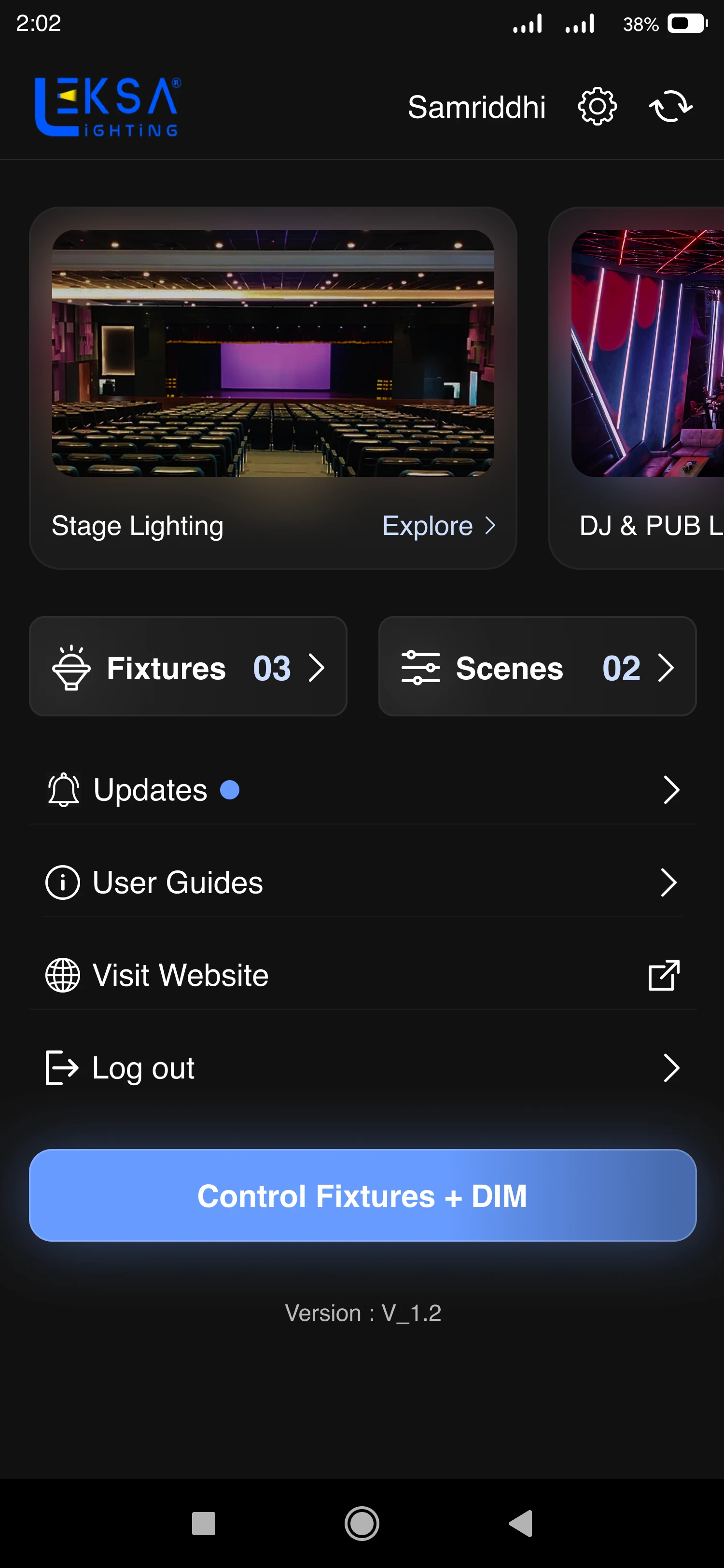
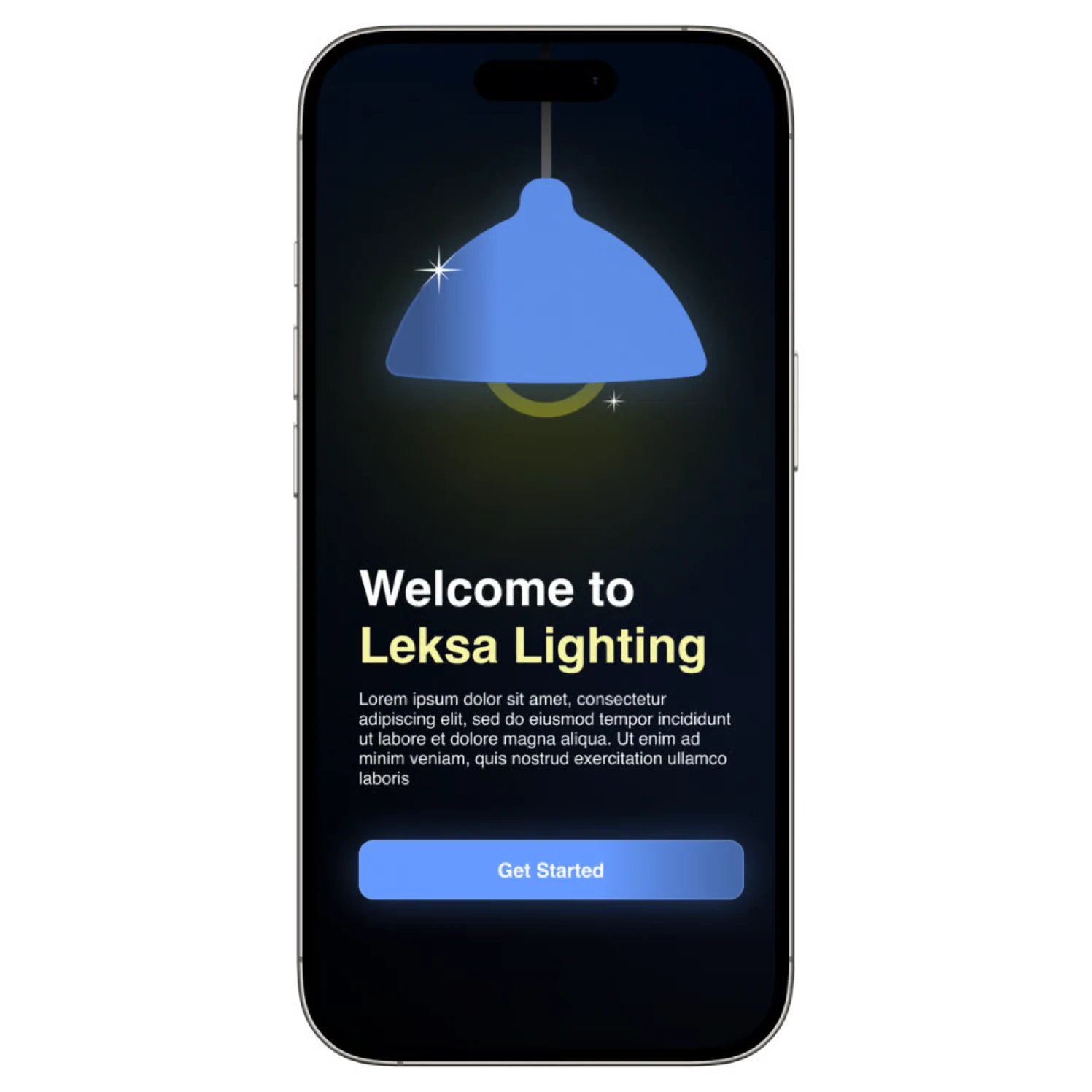
Leksa home
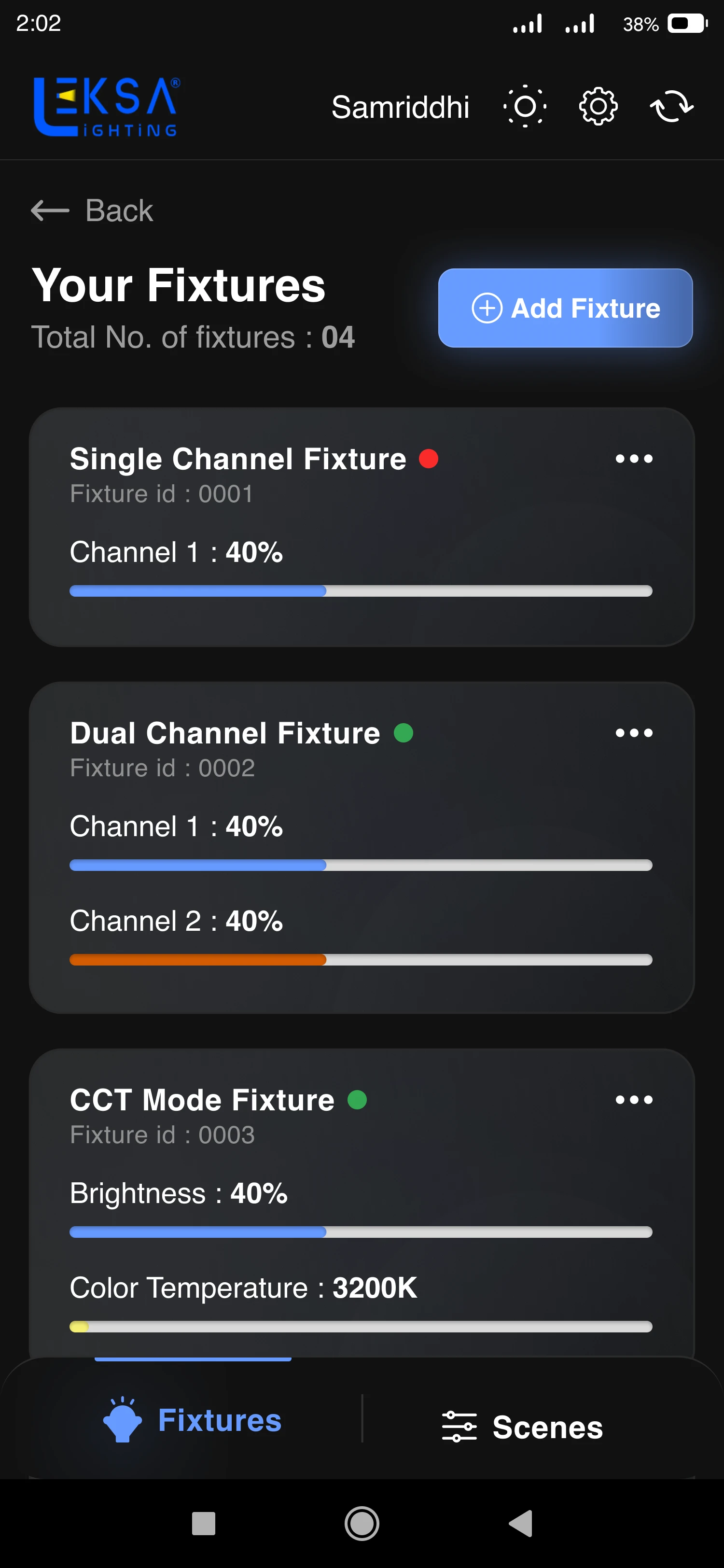
Fixture controls
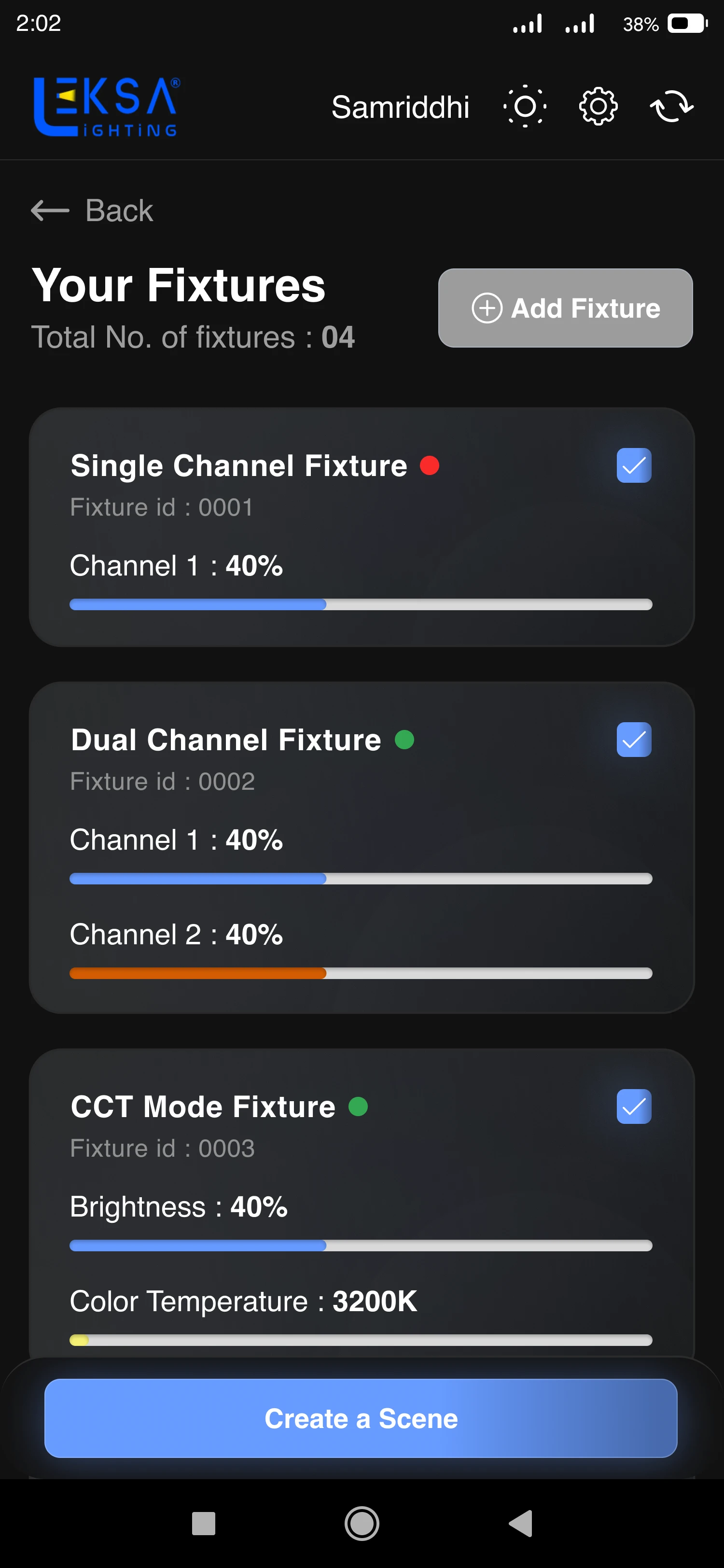
Choose fixtures for a scene
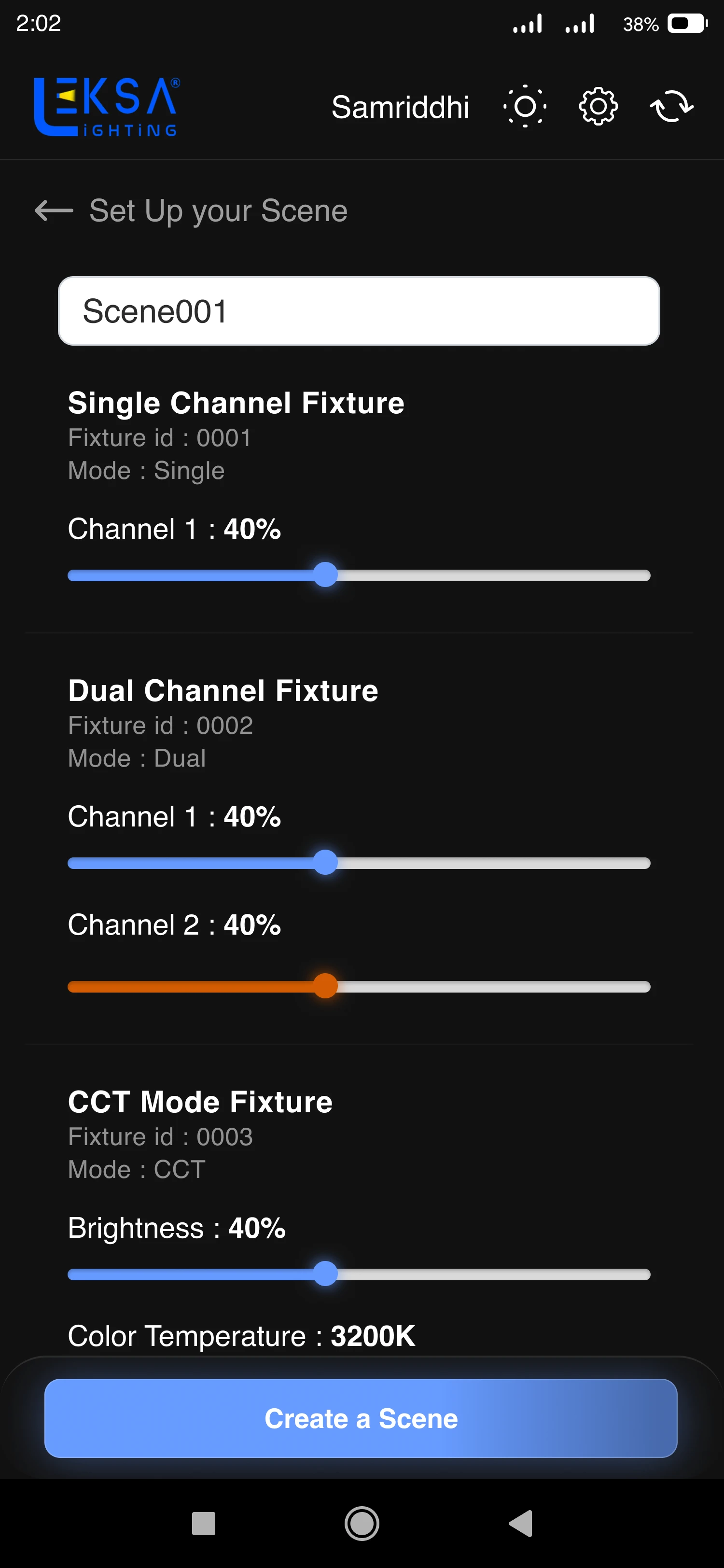
Save the lighting scene
2 monthsConcept to design delivery
3–300Fixtures in the design scope
1 appSetup, control and scenes
Design delivery / Tested with R&D and an engineerBy Samriddhi Tiwari
Context

A light is simple. A room full of lights is not.

01

Fixture

One controllable light or lighting unit.

02

Channel

An independently adjustable output.

03

Scene

A saved combination of light settings.

The intent

Set the room once.
Bring it back in a tap.

Problem

The same app. Different kinds of light.

A single-channel fixture and a colour-temperature fixture need different controls. Shared devices also need clear availability.

Why this direction

The interface should reflect the light that is connected, and explain why a command is unavailable.

Leksa fixture controls for different lighting hardware
Controls change with the connected fixture
Structure

From a new fixture to a familiar scene.

  1. 01

    Sign in

    Enter the workspace.

  2. 02

    Add

    Identify the fixture.

  3. 03

    Adjust

    Set its channels.

  4. 04

    Save

    Name a reusable scene.

FixturesControl individual lights.⇄ScenesRepeat a group of settings.
Structure

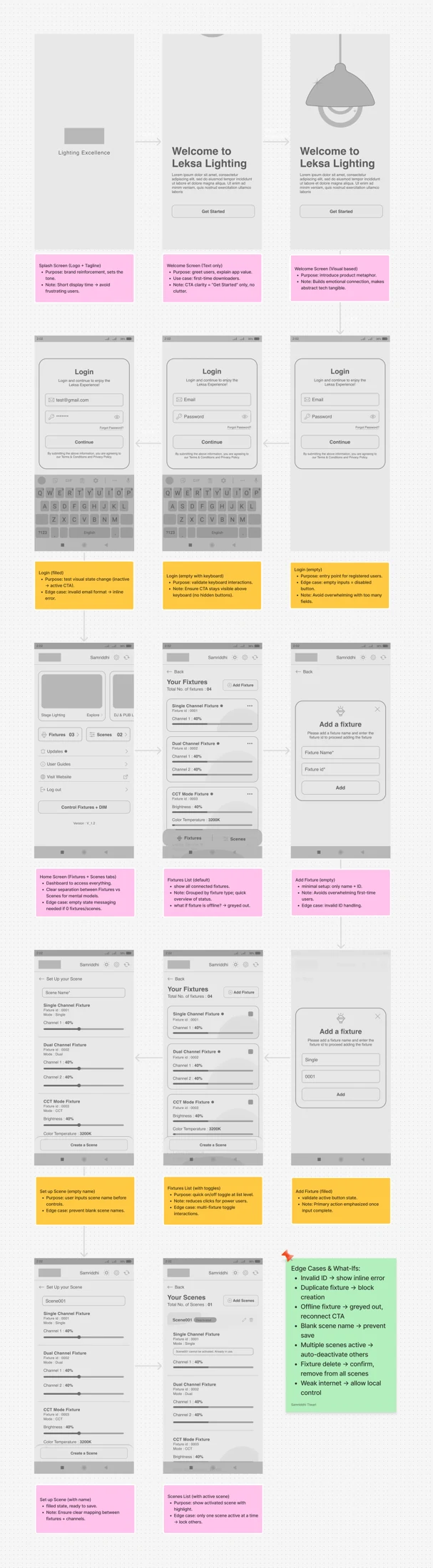
Establish the flow before the finish.

Leksa wireframe exploration
Wireframe exploration
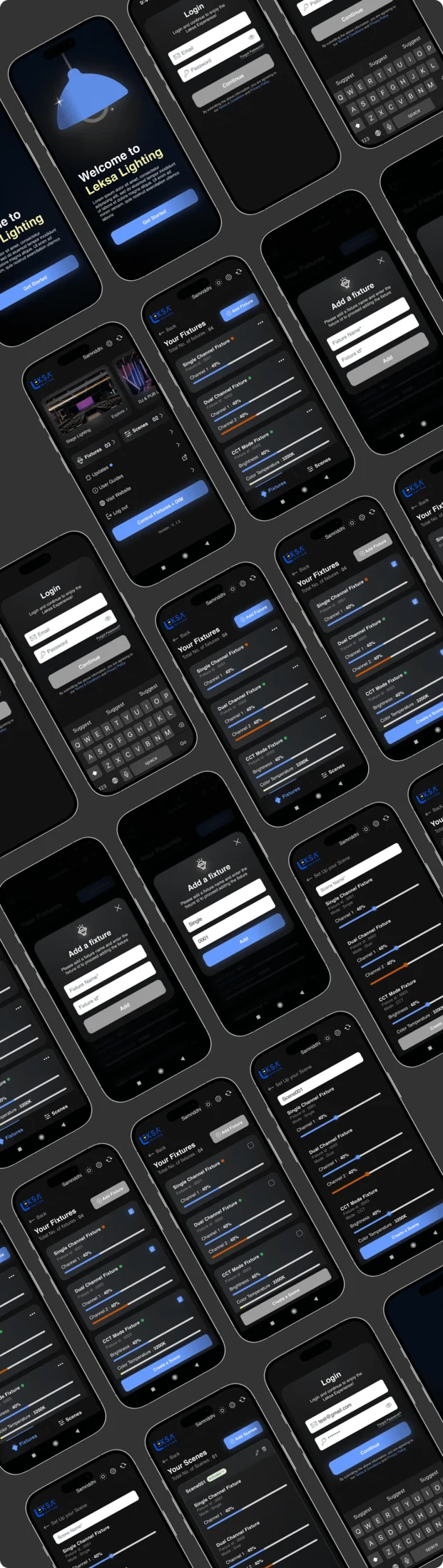
Leksa high fidelity screen collection
Interface system

Original design artefacts. View full wireframes · View interface system

Solution / 01

A useful home, from the first tap.

Fixtures and scenes are easy to reach. Setup starts from an explicit add action.

Design choice

Keep frequent controls distinct from guidance and updates.
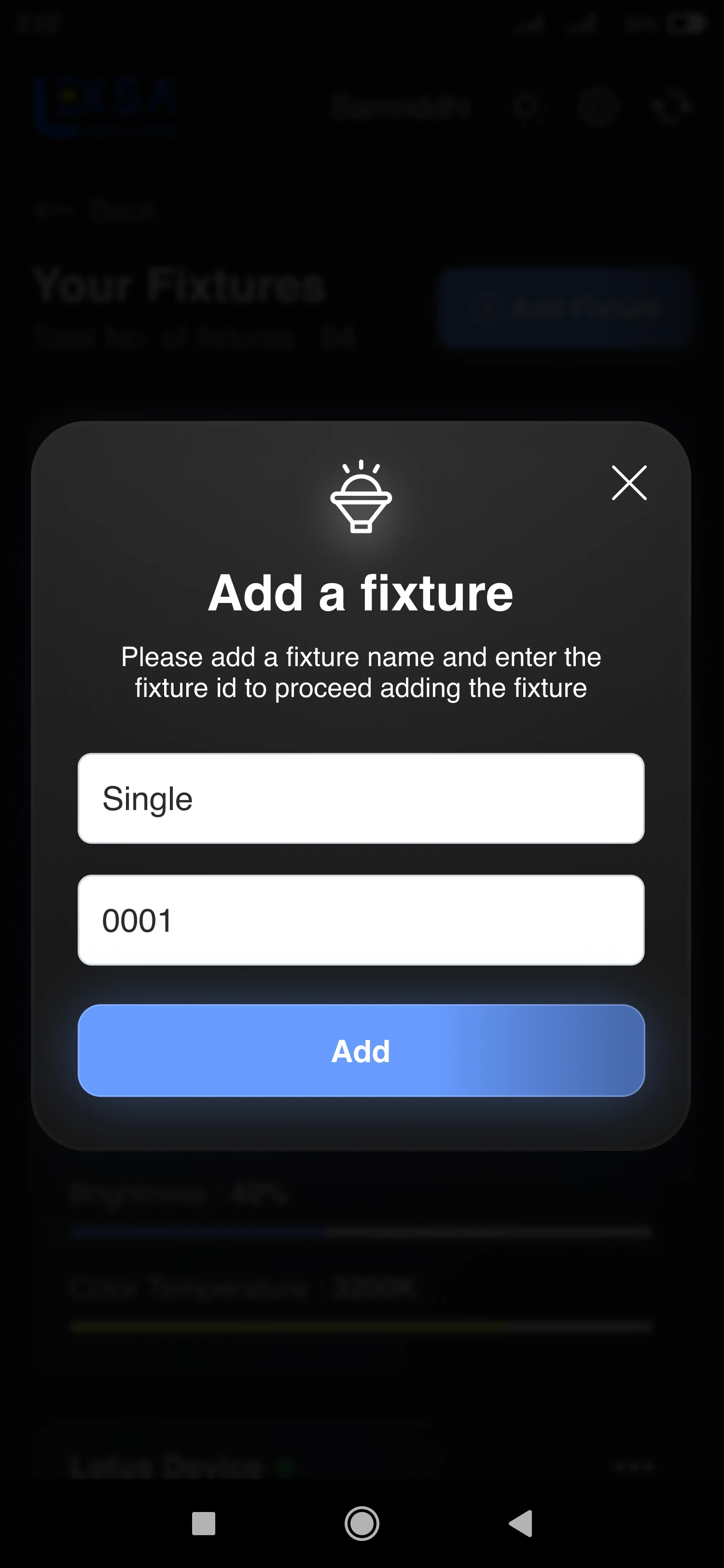
Leksa home screen
Home
Add fixture with completed input
Add a fixture
Solution / 02

Only the controls this fixture needs.

Single-channel, dual-channel and temperature controls reflect the connected device.

Design choice

Do not make people translate hardware differences into generic controls.
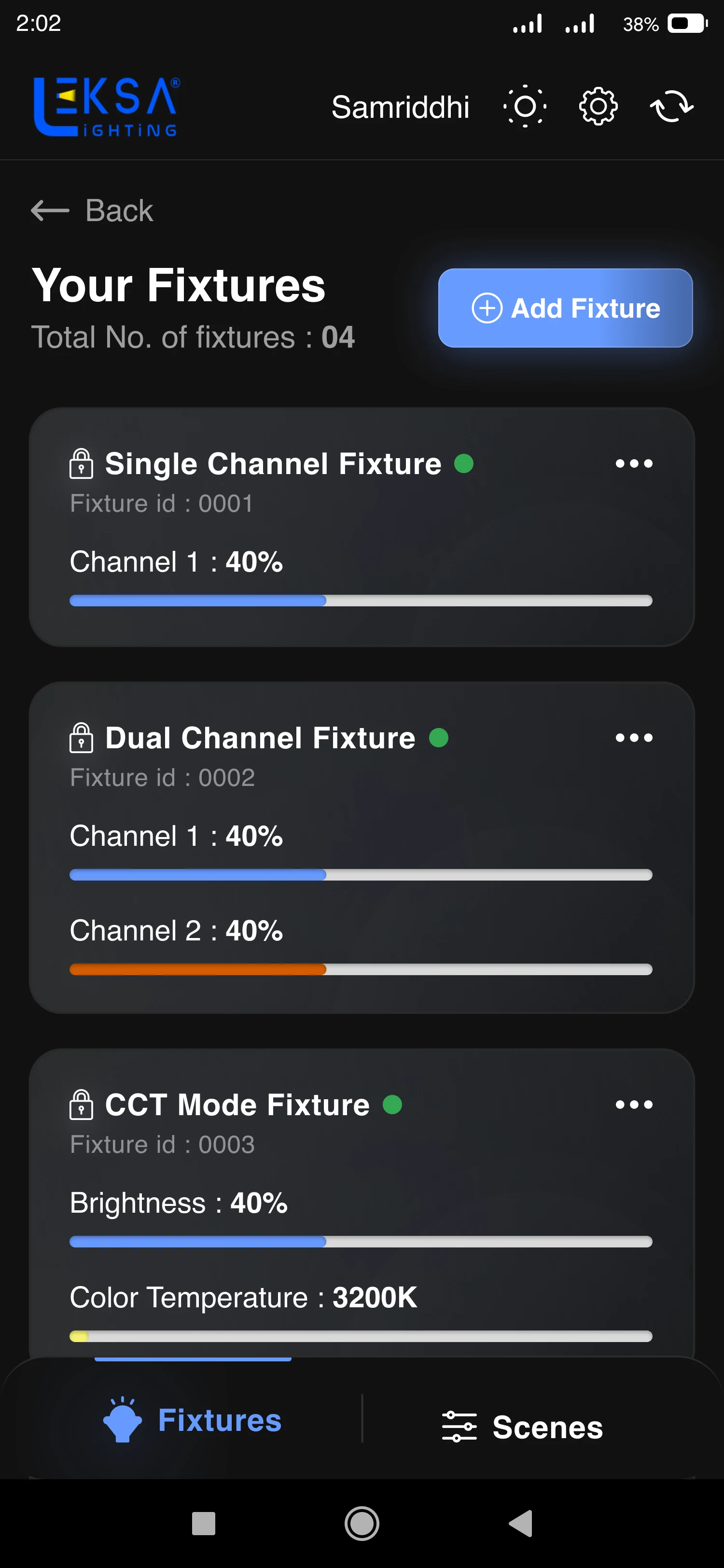
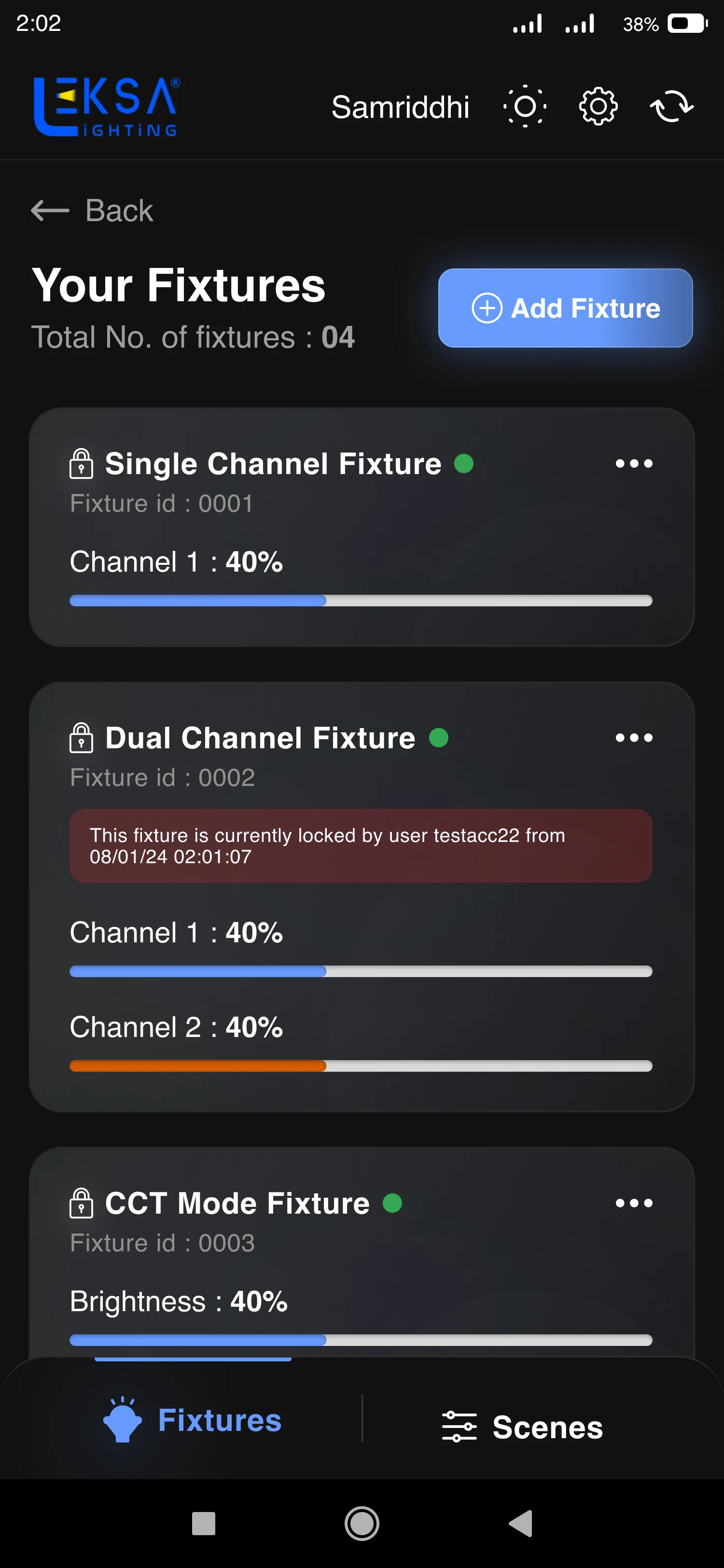
Fixture list showing different channel controls
Fixture controls
Fixture locked by another user
Shared-device state
Solution / 03

A blocked action needs an explanation.

Empty inputs, conflicting details and devices in use should explain what to change next.

Design choice

Feedback belongs beside the action that needs attention.
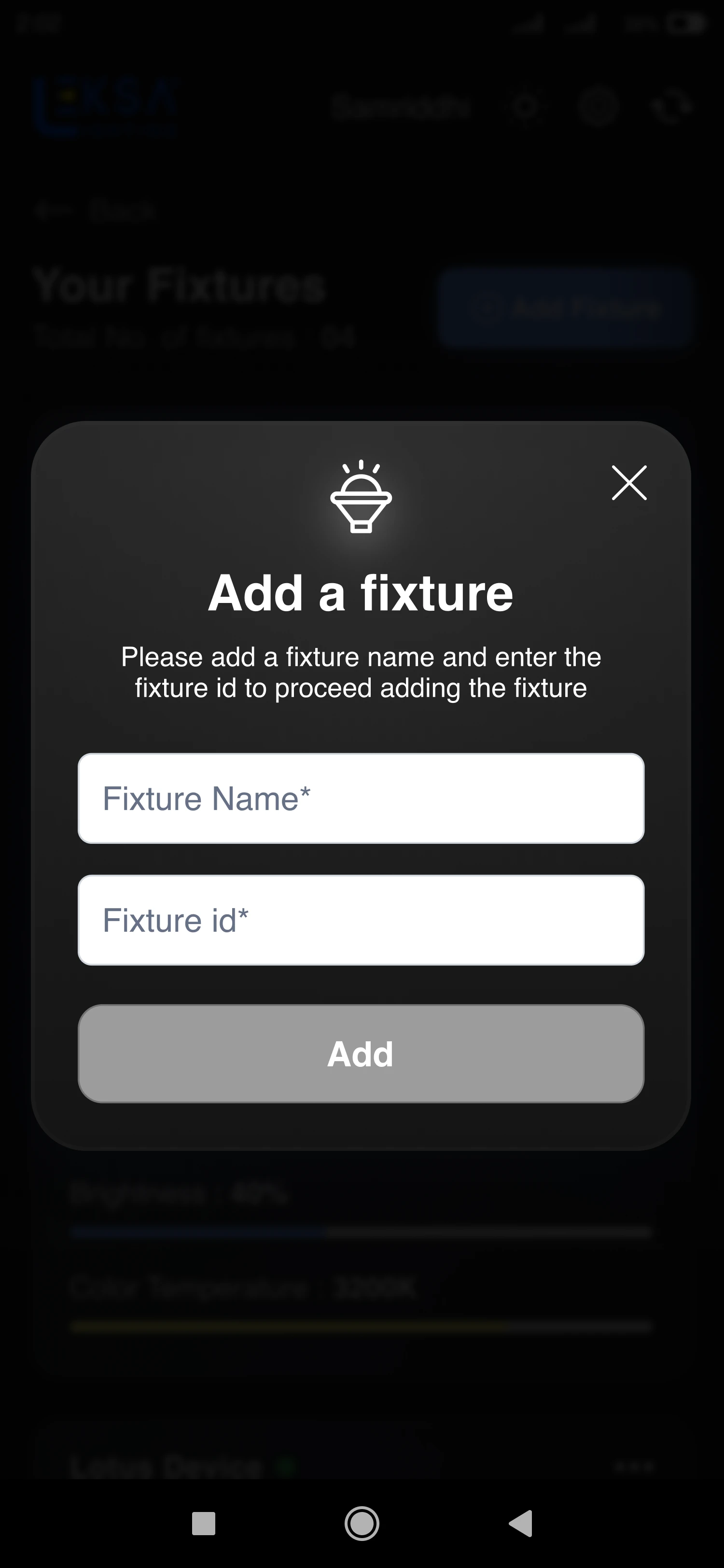
Empty add fixture form
Before input
Fixture conflict feedback
Resolve the conflict
Solution / 04

Save the setting. Repeat the feeling.

Choose the fixtures, name the scene and keep it ready to use again.

Design choice

Selection comes before naming, so the scene has a clear scope.

Selected fixtures for a scene
Choose fixtures
Scene naming and saving
Save the scene
Decisions

Feedback matters beyond the screen.

− Earlier direction? The question✓ Chosen direction
One generic control layout
What can this fixture actually do?
Show controls that match the hardware.
A disabled action with no explanation
What should I fix?
Make input requirements and conflicts visible.
A command looks like a completed action
Did the physical light respond?
Keep command state and device feedback distinct.
Results

A complete control journey, in 2 months.

2 monthsConcept to design delivery
3–300Fixtures in the design scope
1 appSetup, control and scenes
01

Delivered

Setup, fixture control and reusable scene flows.

02

Collaborated

Reviewed interactions with R&D and an engineer.

03

Carry forward

Clear feedback for shared devices and real hardware states.

01 / 10Scroll to unfold the story